If you are using X-Cart 4 use the following link : Exporting X-Cart 4 orders . If you using X-Cart 5 link on the following link: Exporting X-Cart 5 orders
Exporting X-Cart 4 orders
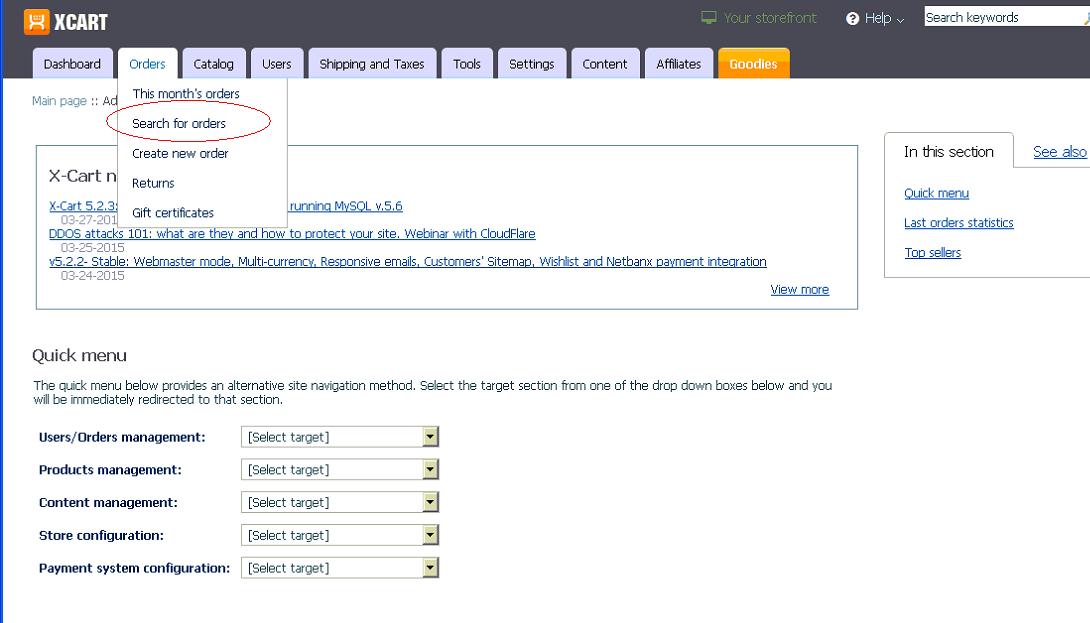
2 Click on Seach for orders under the Orders section, shown below:
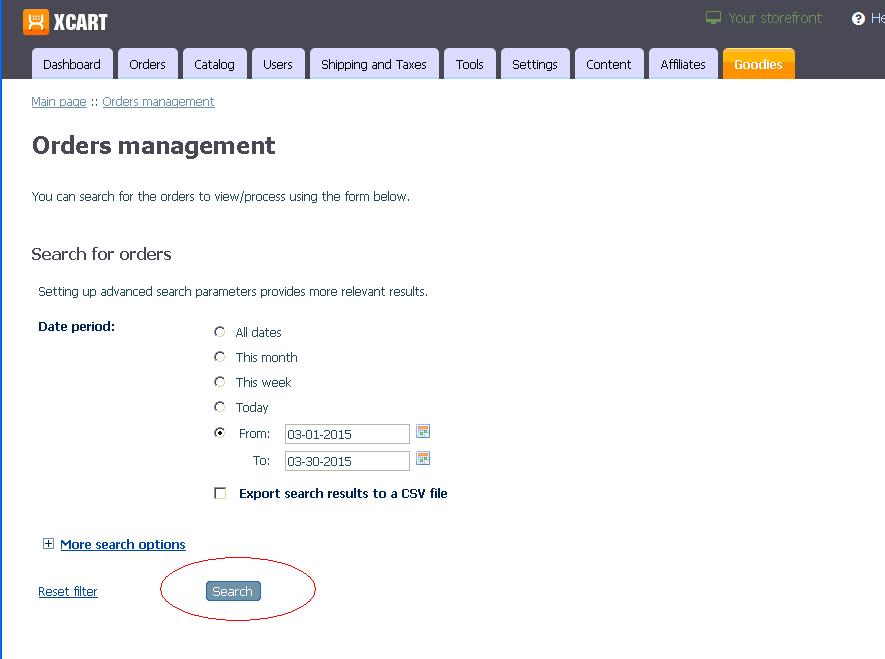
3 In the Orders management/Search for orders section select the Date period that you want orders and click on the Search button, shown below:
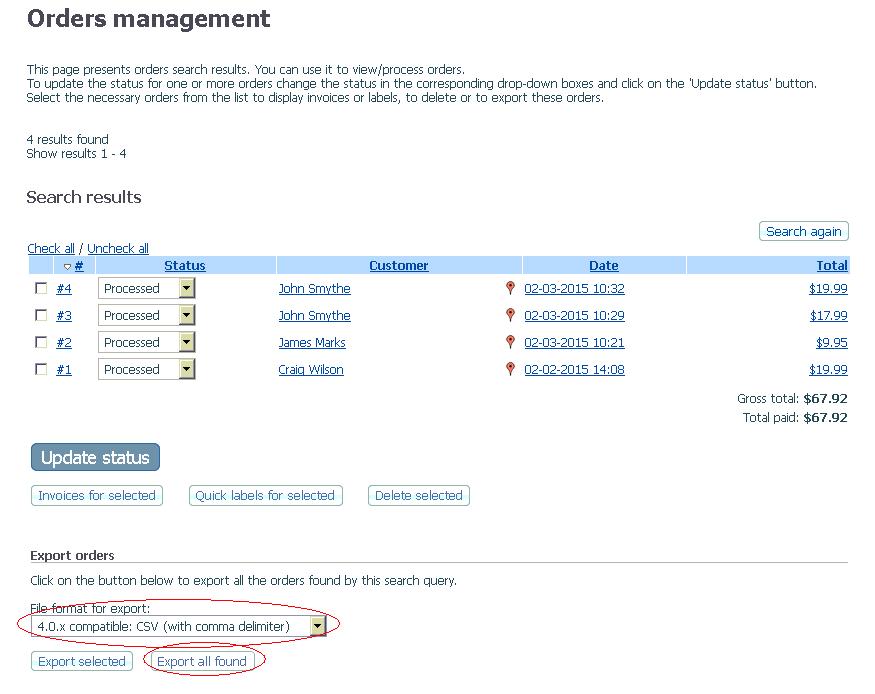
4 The orders found are shown. Under the File format to export, select 4.0.x compatible: CSV (with comma delimiter) and click on the Export all found button. An example is shown below.
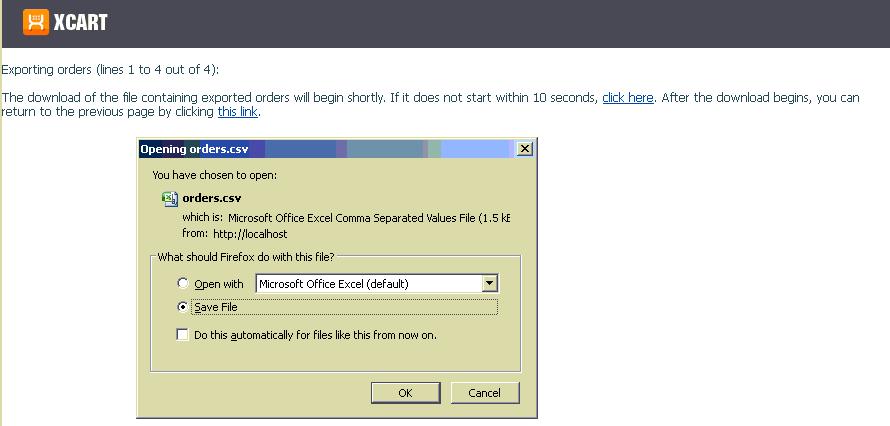
5 Select Save and save the file to C:\Downloads. An example of the screen is shown below:
6 You are now ready to import the orders into One Stop Order Processing.
Exporting X-Cart 5 orders
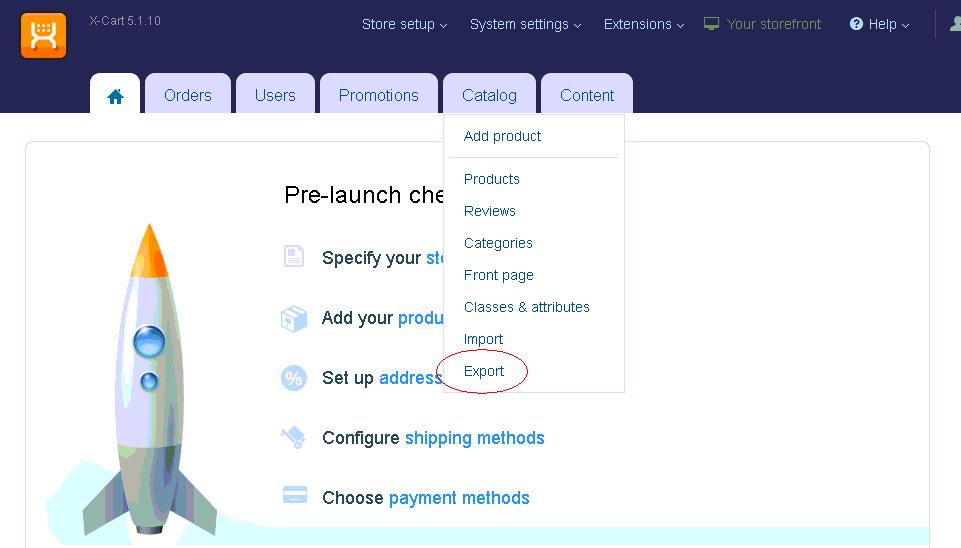
7 Click on Export under the Catalog section, shown below:
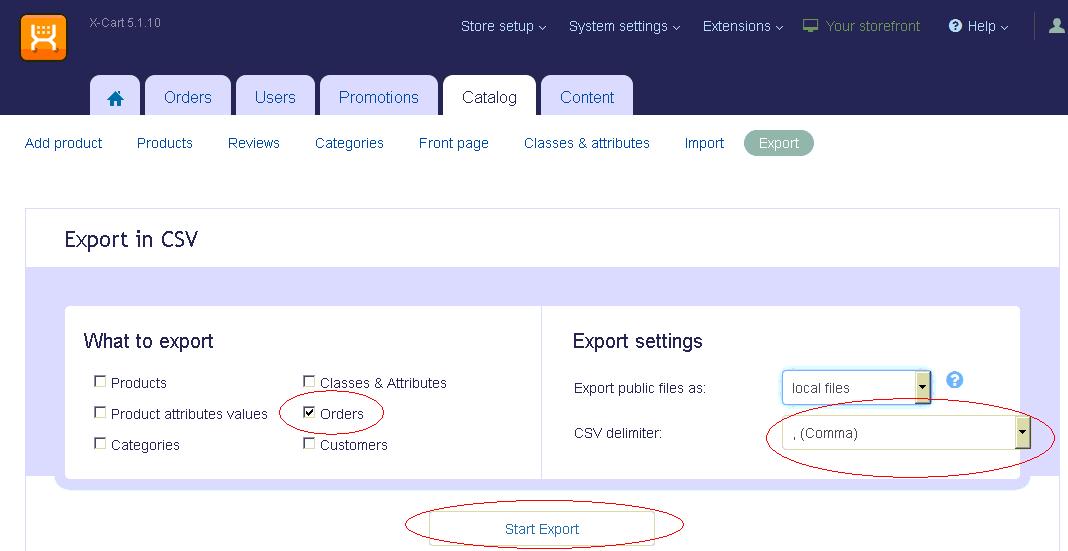
8 In the Export to CSV section select Orders and the CSV delimiter as , (Comma) and click on the Start Export button, shown below:
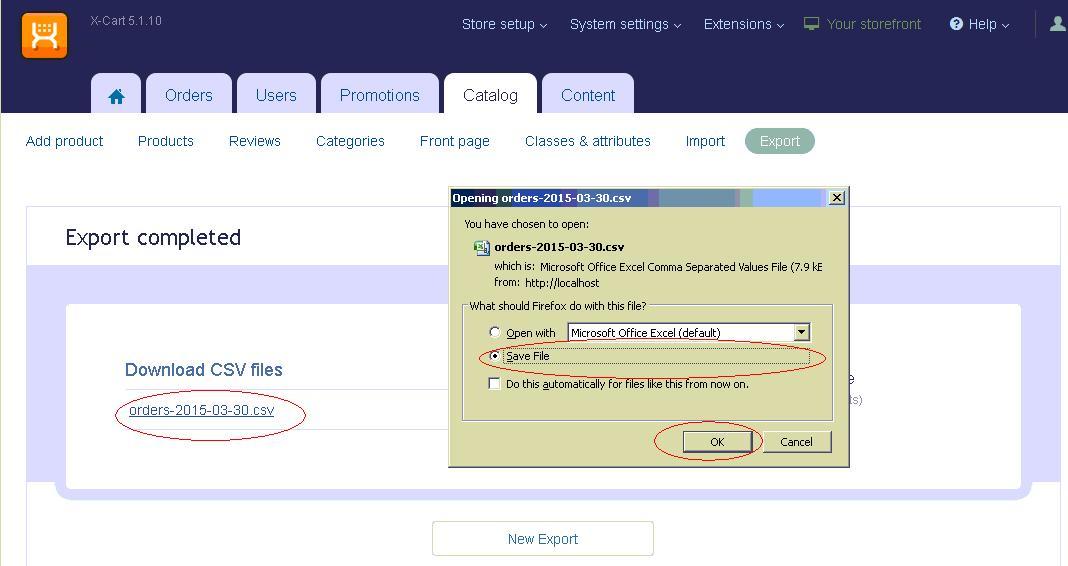
9 The orders export file is the created. Once the orders file has been created click on the orders file link. Select Save and save the file to C:\Downloads. An example is shown below.
10 You are now ready to import the orders into One Stop Order Processing.