To import your orders from Paypal into One Stop Order Processing use the following procedure:
1 Login into Paypal.
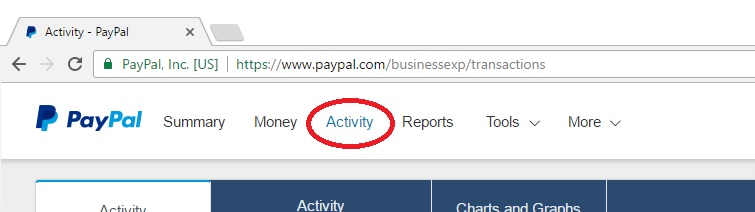
2 Select the Activity menu, shown below.
3 Click the Download link on the right hand side of the Activity page, shown below.

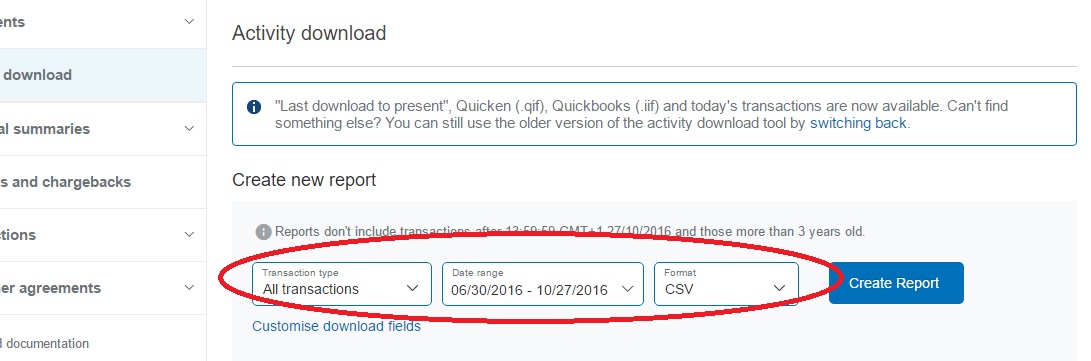
4 On the Activity download page change the Transaction type to All transactions, the Date range to the required number of days of orders and Format to CSV, shown below:
5 When the report is generated the Activity Reports will be updated with the details of the orders to download.
6 You are now ready to import the orders into One Stop Order Processing using the OSOP Import format.
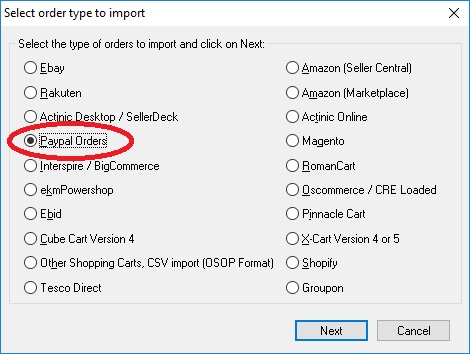
7 In the Import orders dialog , click on Add and select Paypal Orders, shown below.
8 Select the orders file that you have downloaded from Paypal to import the orders.