1 Install the following extension
https://addons.prestashop.com/en/data-import-export/17596-orders-csv-excel-export.html
They provide a demo login so you can see how it works before purchasing their add on.
2 After installing the extension to export the orders do the following:
3 Login to your Shopify shop
4 Select the Modules and Services->ordersexport->Configure menu option
5 Select File format to CSV, . This is shown below:
6 Set Date format = Y-m-d H:i:s
7 Set Each product has a seperate line to Yes, shown below:

8 Click on the Filter Fields tab
9 To export the orders in the correct format you move the fields over to the format list by clicking on the field in the left hand box and move them over by clicking on the Add button. You should move the fields over in the following order.
Order ID, Total Products with Tax, Total shipping with tax, Payment Method, Carrier Name, Payment date, Order comment (message), Invoice Customer first name, Invoice Customer last name, Invoice phone, Invoice Other, Invoice address line 1, invoice address line 2, invoice city, Invoice Zip/Postal Code, invoice Country Name, Invoice company, Product ID, Product Name, Product Quantity, Product Unit Price Incl Tax
This is shown below:
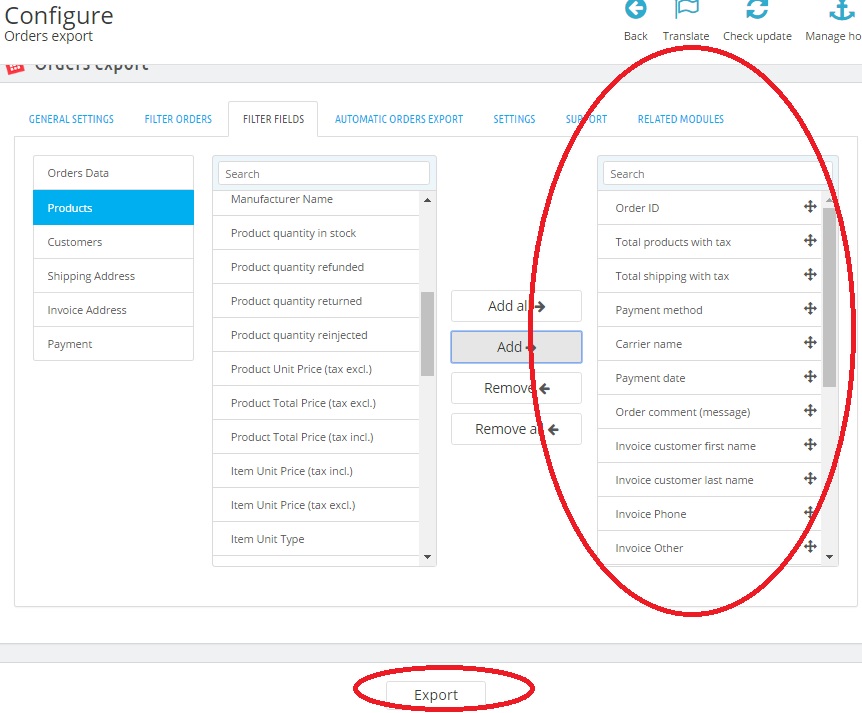
10 Click on Export to save the orders to a file.
11 Create a new import format using the OSOP format (in the Import Orders dialog)
12 Change the date format to DD/MM/YYYY HH:MM:SS
13 In the options, tick use OSOP compatible header for order import file.
14 Put in a value of
Order ID,Sub-total,Total P&P,Payment method,Shipping method,Order date,Delivery Instructions,Invoice Firstname,Invoice Lastname,Invoice Telephone,Invoice Fax,Invoice Address line 1,Invoice Address line 2,Invoice Address line 3,Invoice County,Invoice Postcode,Invoice Country,Invoice Company,Item ID,Item title,Item quantity,Item price
15 Click OK
You should now be able to import the orders.