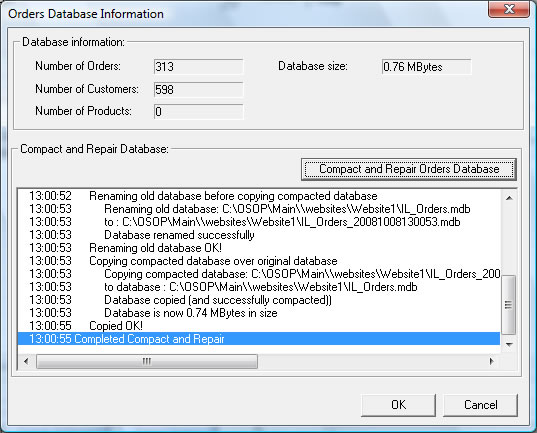
You can display details about your current database by selecting the Housekeeping->Orders
Database Information
You can also compact and repair your order data by clicking on the Compact
and Repair Orders Database button. This will make a backup of your existing
orders data into a zip file. This file will be in the same folder (directory)
as the database, and have the current time and date within its name (and have
a .zip filename extension). This can be used to restore your orders information
if you have a problem.
I can't start or open One Stop Order Processing (OSOP) and it says my database needs to be repaired
The following article explains what to do if you are unable to start or open One Stop Order Processing (OSOP) and it says the database needs to be repaired
If you are trying to start One Stop Order Processing and it was working correctly previously you can use the following approach to repair the last site used.
1 Run a command shell. Hold the Windows key and type R.
2 Type in
CMD
and press enter.
3 Type in
CD C:\OSOP\Main
and press enter
NOTE: This is where the main One Stop Order Processing program runs from.
4 Type:
C:\OSOP\Main\IL_OSOP.EXE -R
and press enter.
5 This should start One Stop Order Processing and repair the last site used.
If you are still having problems you can use the following approach.
a Run the ODBC Administration tool. The easiest way to do this right click on the Windows icon and select Search
b type in
odbc
c From the shown list select
ODBC Data Sources (32 bit)
d from the User DSN tab scroll down and selecta Name that contains yout site name (e.g. MERPCNAME_website130 is for website1)
e Click on the Configure button
f Click on the Repair button
g Then close the dialogs shown and restart One Stop Order Processing
If you are still having problems with repairing not working do the following:
(i). Run CMD (hold Windows Key and click on R).
(ii). Type
CD c:\windows\system32
(iii). Click Enter key
(iv).Type
regsvr32 odbcconf.dll
(v).Click Enter.
How to move One Stop Order Processing to a new PC.